How Desmaptic protects your Mac and your iPhone or iPad
A tap on your iPhone or iPad runs things on your Mac, so Desmaptic guards the way in: only devices you paired can connect, the connection between them is encrypted, and nothing new runs through Desmaptic without your answer. Plain words first; the details for developers are at the end.
In short
Desmaptic Agent puts it in four points, under How Desmaptic protects this Mac in its Security section. Each one is explained below.
-
Encrypted
Your iPhone or iPad and this Mac talk only over an encrypted connection with new keys every time. Others on your network can’t read it or slip anything in.
About the connection -
Only your devices
Only devices paired with this Mac can connect, and only from your local network or, if you allow it, over a VPN — never straight from the internet. A new one pairs only on your local network, with your click on this Mac and the 6-digit code it shows.
About pairing -
Everything goes through your Accept
Desmaptic runs nothing new on this Mac and puts nothing on your deck without your answer: changes from AI and other apps wait for Accept on the iPhone or iPad, each command an AI sends through Desmaptic waits for Allow there, and a command in a notification runs only after you click it.
About your answer -
Websites, other accounts and sandboxed apps are kept out
Web pages can’t send anything to the agent: it refuses requests from a browser. Apps of other users of this Mac and sandboxed apps, such as those from the App Store, can’t deliver buttons or run commands through it: that takes the agent’s private socket.
About what is kept out
An encrypted connection
Your iPhone or iPad and your Mac talk directly, over your local network or, if you allow it, your own VPN. There is no Desmaptic account, and no Desmaptic server sits in between.
Everything they send each other is encrypted, with new keys for every connection; there is no unencrypted mode. Others on the same Wi-Fi can’t read it, and a message changed on the way closes the connection instead of reaching the other side.
No password or token travels over the connection for someone to catch and reuse. Each device proves who it is with its own key, made on that device and never synced to iCloud.
Pairing takes your click and a code
A new iPhone or iPad connects only after you let it, on the Mac:
- On the phone, tap your Mac. The phone asks you to “Confirm on your Mac”: “On your Mac, click Show Code in Desmaptic Agent.”
- A Pairing Request appears in Desmaptic Agent: “‹name›” wants to pair with this Mac, the address it comes from, the device’s fingerprint and how long ago it asked. Click Show Code within 60 seconds, or Decline.
- Type the code on the phone, under “Enter the code shown on your Mac”, within 90 seconds.
- The code appears only after your click, never in a notification, and each request gets its own.
- Show Code doesn’t answer to Return: the agent’s window can come forward on its own with the request, so a Return typed for another app doesn’t show the code.
- The name in quotes is the one the device gives itself, so compare the fingerprint too. While it waits, the phone shows its own as “This iPhone: …” or “This iPad: …”.
- Wrong codes are counted. The phone says how many tries are left, and three wrong codes end the request. After five wrong codes the Mac blocks pairing until you click Allow Pairing; devices you already paired still connect.
- After Decline, the same device can’t ask again for a few minutes, even from another address.
Fingerprints
Every device makes its own key, on the device. A fingerprint is a short form of that key: four groups of characters, such as 3f2a 91c0 7b11 04de. The Mac’s request card shows the phone’s fingerprint. This Mac’s fingerprint, in the agent’s Security section, is the one your iPhone or iPad shows under that Mac in Paired Macs.
After pairing
The phone reconnects by itself, but only to a Mac whose key it remembers, and it checks that key before it shows its own. If a computer claims to be your Mac but can’t prove it, the phone doesn’t connect and says:
Couldn't confirm this is “MacBook Pro”. It may be another user account on that Mac, a reinstalled Desmaptic Agent, or a different computer. Pair again only if you can see the code on your Mac.
You can cut a device off at any time. Remove or Remove All in the agent’s Devices section works at once, and the phone then says the Mac removed it and that it needs to pair again. On the phone, Forget in Paired Macs works the other way round: “To use it again, pair with the code shown on that Mac.”
While another user’s session is active on the Mac, the agent lets no phone in. Its menu then reads “Paused — another user is using this Mac”.
Away from home, over your VPN
Away from home, a paired iPhone or iPad can reach your Mac through your own VPN, such as Tailscale. The agent lets it in only while Allow Connections over VPN is on in its Security section, and it starts off. Even then:
- Only devices you already paired connect over a VPN. A new one pairs only on your local network.
- A connection straight from the internet is never let in, so a port forward on your router doesn’t open the way.
- The phone connects over a VPN only with App Lock on, and asks for Face ID or the passcode each time you open the app away from home.
- Turning the switch off closes every connection that came over a VPN at once.
How to set it up, a Tailscale rule that lets only your phone reach the Mac, and what to do if you lose the phone: Away from home.
Nothing new without your answer
Three things can bring something new through Desmaptic: a change to your deck, a command from an AI and a command in a notification. Each one waits for you.
Changes to your deck: Accept on the phone
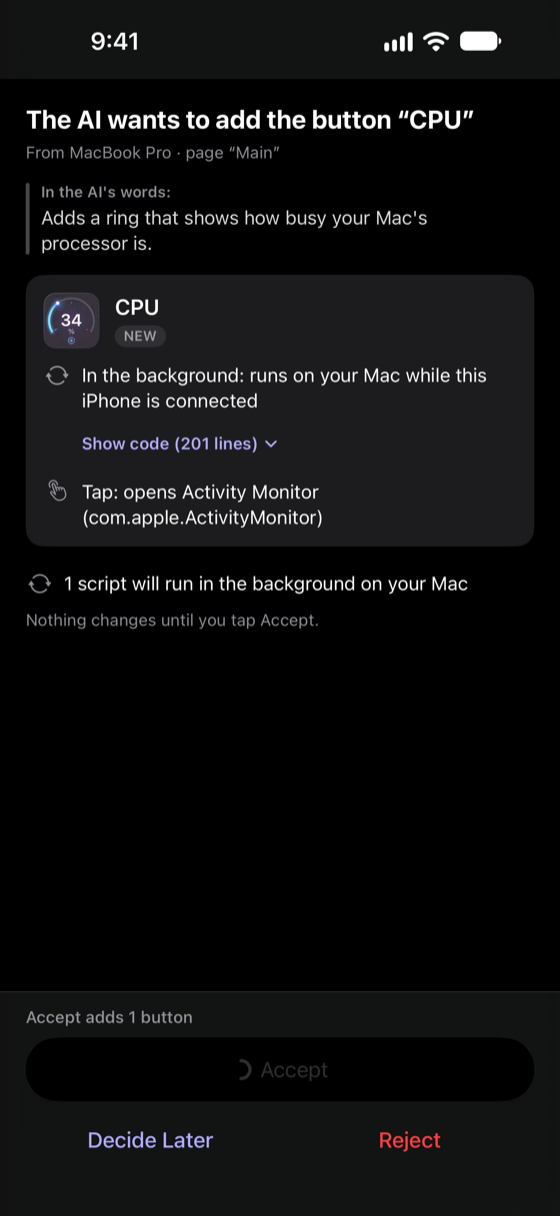
A change from an AI app, or from any other program that sends buttons to Desmaptic Agent, arrives on your iPhone or iPad as a review card. It opens in its own window above everything in the app, even the editor, the Gallery and Settings, and says which Mac sent it.
- Every script on it can be read: new code in full, changed code as a diff under Show changes. Code with a warning starts open.
- Warnings point at what deserves a closer look, such as “Talks to the internet: …”, “Downloads something from the internet and runs it” or “Contains hidden characters”. Characters that would otherwise be invisible, or would reorder the text, show up as visible marks. Next to its warnings, the card adds: “These checks can't catch everything.”
- Under “In the AI's words:” is how the AI describes the change. Check it against the code.
- Accept applies the whole change, never a part of it. It works a second after the card appears, and that second starts over when the card is rebuilt or you come back to the app, so a tap meant for something else doesn’t approve it.
- If your buttons change while the card is open, it is rebuilt and says so: “Your buttons changed while this was open, so the list was updated. Take another look.”
- Reject “Tells the AI no. Nothing changes.” Decide Later puts the change aside: for a few minutes, you can answer from the banner above your buttons.
What an AI can do through Desmaptic
Desmaptic Agent lists it in its AI Assistants section, under “What AI can and can’t do without you”:
-
Through Desmaptic, on its own
See your profiles, pages and buttons, your apps and which one is in front
Check your startup scripts and restart one that is already on your deck
-
Through Desmaptic, only after you approve on your iPhone or iPad
Add or change buttons, pages and profiles: each change waits for Accept
Run a command on this Mac to check something: off unless you allow it, and then each one waits for your approval
-
Through Desmaptic, never
Press your buttons or run their actions
Commands from an AI: Allow, one at a time
An AI can ask Desmaptic to run a command on your Mac to check something. That is off until you turn on Allow AI to Run Commands in the agent’s Security section, and it starts off.
With it on, each command comes to the phone first: “The AI wants to run a command on MacBook Pro”, the whole command, and the AI’s reason under “In the AI's words:”. You have 35 seconds to tap Allow or Deny; no answer counts as no. Only one command waits at a time. An allowed command runs for 15 seconds at most, and “What the command prints goes back to the AI that asked for it.”
Commands in notifications
The scripts of your buttons, and other programs on the Mac, can show notifications with buttons on the phone and on the Mac. A notification button that opens a web page or an app, or does something light such as play/pause, the volume or the brightness, runs when you click it.
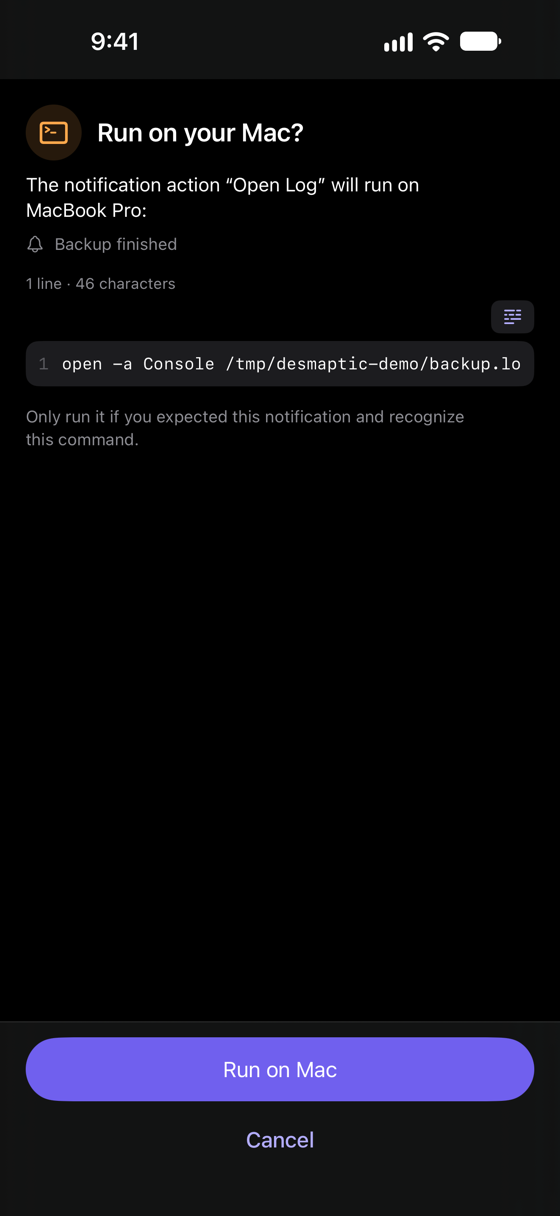
Anything else, such as a command, a shortcut, typing text, sleep or emptying the Trash, runs at a click without a question only if the scripts of your own buttons sent the notification: that is like pressing the button. From any other program, Desmaptic shows the whole command first and asks:
- on the Mac, “Run this from a notification?”, where both Return and Escape choose Cancel;
- on the phone, “Run on your Mac?”, with Run on Mac and Cancel. Like Accept, Run on Mac works only a second after the sheet appears.
An action runs only on the Mac that sent the notification, and a click on the notification itself runs nothing.
What is kept out
Besides your iPhone or iPad, Desmaptic Agent answers programs on the same Mac, in two ways:
- The scripts of your buttons reach it at
127.0.0.1:9848with a token that changes every time the agent starts. With it, a program can redraw a button, show a notification, report why a button doesn’t work, see whether a phone is connected and what it shows, and read the sound levels. It can’t change your deck or ask to run a command, and a notification with a button that runs something is accepted this way only from scripts the agent started itself. About the token - Programs that change your deck or ask to run a command, such as the connection of your AI app, use the agent’s private socket: a file in a folder that only your macOS account can open. A change they send, or a command they ask for, still waits for your answer on the phone.
That keeps out:
- Web pages. The agent refuses every request a browser marks as coming from a page. It also refuses a request that reaches it under a website’s name instead of localhost, a trick a page could use to pass for a program on the Mac. A page can’t reach the private socket at all.
- Other accounts on this Mac. They can’t open the folder with the socket, and the file with the token can be read by your account only.
- Sandboxed apps, such as those from the App Store. They can’t reach the socket.
On the iPhone or iPad
- App Lock, in Settings › Security, is off until you turn it on; under it, the phone says how it unlocks: with Face ID, Touch ID, Optic ID or the device passcode. In the words of Settings: “The app lock asks before anyone edits the deck, opens the Gallery, pairs a new Mac or approves a change. Tapping buttons doesn't need it.” It asks again after 1, 5 or 15 minutes (Ask Again After, 5 by default), and turning it on or off, or changing that time, takes the same check. While it is locked, the phone says what is waiting but shows it and lets you approve only after you unlock; an answer that approves nothing, such as Deny for a command, works without unlocking.
- Away from home, App Lock is required: “App Lock is also needed to connect to your Mac over VPN away from home.” Over a VPN, the app asks to unlock each time you open it, and the deck stays covered until you do. More in Away from home.
- Hide Code While Recording or Mirroring is on from the start: “While your screen is recorded or mirrored, scripts, links and pairing codes are hidden until you tap Show. Your buttons stay visible.”
- When you leave the app, its picture in the app switcher is covered.
- Copy All in the code editor keeps the copy on this device, away from Universal Clipboard, and the copy clears itself after two minutes.
- The keys of your pairings stay in this device’s Keychain and are never synced.
- With iCloud on, your deck is kept in Desmaptic’s own iCloud storage, which other apps on your Mac can’t change. Desmaptic Agent itself has no access to iCloud, so a change that comes through it reaches your deck only through the review card. Earlier versions of the app kept the deck in iCloud Drive; if the connected iPhone or iPad still runs one, the agent warns: “The Desmaptic app on the connected iPhone or iPad keeps its deck where any app on your Macs can change it. Update the app.”
For developers
The same protection in technical terms.
- Transport
- TCP port 9847 on the local network, found through Bonjour (
_desmaptic._tcp). The phone connects and the Mac listens. From a VPN, only an already paired device, and only while Allow Connections over VPN is on; pairing only from the local network; from the internet, never. No Desmaptic server is involved, and there is no unencrypted mode. - Handshake
Noise_XX_25519_ChaChaPoly_SHA256with the prologueDesktap-SC/1, the phone as the initiator. Fresh ephemeral keys on every connection give forward secrecy. No tokens or other reusable secrets go over the wire.- Identity
- One long-term X25519 key per iPhone or iPad and per user account on a Mac, made there and pinned at pairing. Trust comes only from the key proven in the handshake; names, addresses and Bonjour records are hints, never proof. When reconnecting, the phone checks the Mac’s static key after the second handshake message and, unless it is a key it paired with, stops before the third, which would carry its own.
- Fingerprints
- Lowercase hex of the SHA-256 of the public key. The apps show the first 16 characters, in four groups.
- Pairing
- CPace (CPace-X25519-SHA512, draft-irtf-cfrg-cpace-20) inside the Noise session, bound to both static keys, with key confirmation. The 6-digit code comes from the system’s secure random generator, only after the click on the Mac, lives 90 seconds and never crosses the network. Three tries per code; five failed tries since the last successful pairing lock pairing until Allow Pairing.
- Messages
- After the handshake, every message is a Noise transport message, authenticated and encrypted with ChaCha20-Poly1305. A bad tag, a malformed frame, record or control message, or a message that isn’t allowed at that moment closes the connection at once: no resync and no fallback to an older protocol. Application data flows only after the Mac admits the phone. An application message that passes the tag check but that the receiver doesn’t understand, such as one from a newer version, is skipped.
- Keys at rest
- On the Mac, in the login keychain, with access tied to the agent’s code signature. On iOS, in the Keychain, this device only, available after the first unlock. Neither is synchronizable.
- Local API
- Button scripts reach the agent at
127.0.0.1:9848and[::1]:9848withAuthorization: Bearerand a token of 32 random bytes (dtw_and 43 base64url characters), new on every run, handed to scripts inDESMAPTIC_TOKENand in~/.desmaptic-mcp-token(mode 0600). Six routes: status, view, update-button, notify, error and audio/levels. Everything else, delivering a change and asking to run a command included, is served only on the Unix socket in~/Library/Application Support/Desmaptic/LocalAPI/(socket 0600, folder 0700), without a token: owning the path is the check. A folder that is a symlink or belongs to another user isn’t served. - Gateway
- Checked after the headers, before the body is read: an
OriginorSec-Fetch-Siteheader gets 403; over TCP, aHostother thanlocalhost,127.0.0.1or[::1]gets 421 (DNS rebinding) and a missing or wrong token gets 401; an unknown route, 404; an admin route over TCP, 403; a body over the route’s limit, 413. Every response carriesCache-Control: no-storeandX-Content-Type-Options: nosniff. - Notifications
- Over TCP, a notification with an action that runs something is accepted only from the process group of a button script the agent started; anyone else gets 403, even with the token. Where a notification came from is set by the agent, never read from the request (a body with
origingets 400), and reaches the phone inside the encrypted connection, so both ask by the same rule. A sensitive notification can’t carry a command. - Commands
- No route runs a command on its own: an AI’s command waits for Allow on the phone, and restarting a startup script restarts only one already on your deck.
- Updates
- Desmaptic Agent is signed with a Developer ID, notarized by Apple and runs with the hardened runtime. Updates come through Sparkle with a signed feed, and every download is checked against its EdDSA signature before it is unpacked.
- Logs
- Keys and pairing codes are never logged. Scripts appear in the agent’s log only as their length and a short digest, and the AI’s words about a change aren’t logged.
More in the docs: pairing, the agent’s Security section, away from home over a VPN, what an AI can and can’t do, when a notification asks first, the local API and its status codes.